
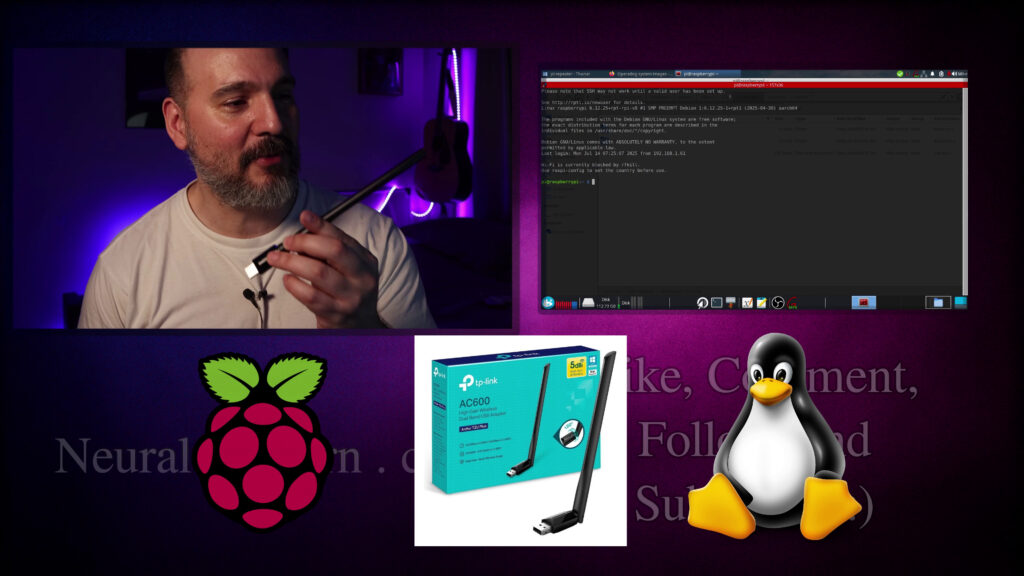

Tired of seeing “Linux: No” on every review for the TP-Link AC600 USB WiFi adapter? I was too… until I got it working perfectly on my Raspberry Pi.
In this no-BS tutorial I walk you through:
- Identifying the chipset with lsusb
- Finding the right GitHub driver repo (rtl8812au / rtl8821au)
- Compiling the driver from source on Raspberry Pi (32-bit or 64-bit)
- Speeding up make with -j4
- Installing the module and making it load on boot
- Setting up DKMS so it survives kernel updates
- Verifying it works after reboot
- Checking if it supports Access Point mode
Yes, this actually works. Yes, I did it on a real Raspberry Pi (not some x86 box). And yes, you can do it too even if you’re still getting comfortable with the terminal.
Timestamps in the video so you can jump straight to what you need.
If you’re trying to add a second WiFi radio, improve range, or turn your Pi into a proper access point – this is the video that finally makes the cheap AC600 dongle useful on Linux.
Introduction 00:00:00
Why this adapter doesn’t work out-of-the-box 00:00:28
Finding the chipset with lsusb 00:02:05
Searching GitHub for drivers 00:03:16
Choosing a driver repository 00:04:42
Installing git and cloning repo 00:06:12
Reading the README 00:07:35
Editing Makefile for Raspberry Pi 00:07:56
Installing build-essential 00:09:14
Compiling the driver (make -j4) 00:09:27
Using screen for long tasks 00:10:33
Installing the module 00:11:12
Checking if WiFi interface appears 00:11:46
Making driver load on boot 00:12:13
Installing DKMS for auto-rebuild 00:12:52
Fixing DKMS mistake 00:15:11
DKMS finally finishes 00:17:00
Adding module to /etc/modules 00:17:09
Reboot and verify persistence 00:17:48
Checking Access Point support 00:18:26
Conclusion and wrap-up 00:19:08
Thanks and subscribe 00:19:22
Thanks for watching!
Find us on other social media here:
- https://www.NeuralLantern.com/social
Please help support us!
- Subscribing + Sharing on Social Media
- Leaving a comment or suggestion
- Subscribing to our Blog
- Watching the main “pinned” video of this channel for offers and extras
Hello there!
Let’s learn how to compile drivers for a USB Wi-Fi adapter from source.
We’re going to be getting this adapter to work.
It’s called the TP-Link AC600 USB Wi-Fi adapter, which runs on 802.11ac.
Reviews for this say that it does not actually work for Linux, but I got it to work,
so I’m going to show you how I got it to work on my Raspberry Pi.
Anyway, so what am I talking about here?
Okay, so you know you get a raspberry pi and you want to hook it up to a second wi-fi radio
because you want to make an access point or do more networking stuff or the range on the
built-in radio is crappy so you want a better antenna or something like that and you plug
it in after waiting for it to ship to you and it doesn’t work and you’re really really
sad and then you go to the reviews and you finally notice that all the reviews said this
right that’s still true for a lot of adapters but for this one uh it did say all over the place
all over the reviews that i found that this doesn’t work for linux but i got it to work
because there are drivers you can find online and install if you’re just willing to do a little bit
of work it’s not really that much work um if you don’t know how to use the command line or connect
to machines over ssh you probably want to just check out my other videos real fast i show you
how to do all that stuff in this video i’m just going to basically assume that knowledge and just
just kind of show you how to find drivers that might relate to your dongle and
install them. So this video is about this particular dongle but the idea that I’m
showing you can work for a lot of different dongles. I actually just use
this idea for a different dongle earlier today. So the first thing that we’re
gonna do is we’re gonna try to figure out like what is the driver that we’re
supposed to be finding right. So this is like the Raspberry Pi website it’s not
on there for sure. We got a bunch of new stuff that I should probably have hidden
new stuff that I should probably have hidden who cares let me actually okay
I’ve got a Raspberry Pi that’s online right now this is not the thing that
you’re looking at right now you’re looking at my VM so I’m gonna plug this
adapter this dongle into my Pi and then I’m gonna use a program called LSUSB to
If it’s not on your Pi yet, it should be on your Pi by default, but if it’s not, you can
do something like sudo apt install USB utils.
Obviously you need to be online because I’m in my Pi right now.
But I’m going to go sudo ls usb and hope that it shows up.
Okay, so it shows up.
Notice how it says TP-Link Archer and then it kind of gives a little bit of a description
of the dongle.
If you’re not sure which thing it is in this listing, you probably want to list before
before you put in the dongle and then list again after you put in the dongle
uh i’m lucky it shows me kind of like the driver that i’m supposed to be
searching for so i can search for rtl8821
and then um if it doesn’t show you that you can actually just search for these
numbers right here this little id here this will kind of give you a
decent idea of of what dongle you have if you search for
specifically that number online so i’m gonna like search for
right for me I already found the repository so I’m just going to give you
like a couple of tips and tricks of what you could do you could say drivers and
then search for that you could also search for right see so so that the
device ID already showed us the drivers there’s probably some links here to some
drivers you can find online a good place to check is github.com they have tons of
for some reason they don’t like it when I’m on this VM. I don’t know why they always tell me
I’m searching too fast. So let’s see if that actually works. But so I’m going to go back here
and I’m going to search for this little thing here, which you could eventually find if you
started with the search for the device ID in USB. But I’m going to go on to GitHub and see if,
see if that shows up anywhere. Okay, it shows up. These are not the repositories that I’m going to
sometimes this is trial and error you might have to try several different repos but probably a good
rule of thumb is uh if you just entered the name of the uh you know the like little driver description
here then you don’t really need to sort by relevancy so i’m going to sort by most stars
which not always but sometimes it tends to tell you which repositories are better which ones
So, yeah, this might work.
And then you look at the latest push, last updated April 8th.
I don’t know about that, man.
So you just kind of keep scrolling down until you find something that looks good.
For me, in this particular adapter, I ended up settling on this repository right here.
I don’t even think this is the best repo, but that is what I settled on.
So I’m going to paste this one.
And so this is the repository that got it working for me on this system.
newer one I found that I think will probably work too but I just want to stick with what works this
works I’m fine I’m fine now I don’t need any more although that’s not super smart you should probably
find the best so if you go to the home page you should carefully read all the instructions because
it’ll tell you basically how to build the the driver if you’re trying to follow along with
this video with like a different you know dongle this advice can still work for you you probably
can still work for you. You probably just have to read the readme. There’s a file called readme in
there and just follow everything it says. For this one in particular, it’s kind of simple. It just
tells me to change a few things and then run like a make and then run like a make build and whatever.
So, but I’m just telling you, if you end up on a different repo because you have a different USB
dongle, you just have to read the instructions. And then the process is probably very similar
besides that. So what am I going to do here? Let’s go back into the Pi and let’s clone this
clone this repository. The first thing before we can actually clone repos,
what is a repo is just like a place where you store code, right?
So we have to install a tool called Git. So I’m gonna say sudo apt install git.
Git is just a program that helps programmers, you know,
track changes to their code and like collaborate with each other and it gives
them nice history and logs. And it’s, it’s really great.
It’s taken the world by storm. So I’m gonna install that first.
And then I’m gonna go into a special directory called opt.
a special directory called opt so cd slash opt you don’t have to clone the repo here but i like to do
uh you know wild wild wild west repos here because i feel like the slash opt directory
is for optional software that you’re just kind of installing yourself and it’s like outside the
package manager i think i read that somewhere so i’m going to go sudo su root so that i can stay
the op directory is owned by root. So I’m going to have to use sudo a bunch of times and I’m
going to forget and it’s going to be a pain in my butt. So I’m going to, I’m going to use the git
program that I’ve just downloaded to clone that repository. So I’m just pasting the URL of this
repository that I found. Git clone and then enter it. It should contact GitHub. And now you should
have a new folder. Again, if you’re uncomfortable with the command line, see my other videos. So I’m
And if you look into the folder, this is the same thing that you’ll see on the GitHub webpage.
It even has the README file.
So if I do less README, I can just kind of read the instructions on the pie.
So what the instructions are telling me to do is I need to modify something called the
make file.
You don’t need to know too much about make files right now.
See my other videos if you’re interested in learning how to do that.
make how to build the driver so i’m going to edit it and search for something called
config platform and it should be i386 so basically again you don’t have to know this by magic the
instructions told me to do this i didn’t guess this basically by default it’s going to try to
build for i386 it’s going to try to build for pc but this is not a pc this is a pi it has a different
duplicate that line and change the yes to no.
For me, I like to duplicate lines that I change from default so it’s easier for me to revert
later.
Although I guess since I am inside of a Git repository, I could just use the Git features
to go back.
But so I’m looking for RPI.
There we go.
And I need to change that to yes.
So if your Pi has a 32-bit operating system, shame on you, you should probably upgrade
to 64.
I’m on 64-bit so I’m just going to basically change the no to a yes meaning yeah let’s build for 64-bit arm raspberry pi.
Then I think we’re done editing that file and we’re ready to just sort of like build the repository.
You might need to install build essentials.
I can’t remember always if it’s build essential or build essentials with an S.
some tools that will help you build repositories like this on your Pi.
So now that I’ve edited that make file,
I’m going to do make and hit enter and it should start building.
The thing though about make is by default,
it doesn’t use all of your cores.
So I’m going to go back into the Pi 2.168.1.123.
You can see that I am not actually saturating all of my CPU cores.
So this is taking longer than it needs to take.
With make you can actually launch parallel jobs with dash J4 as an argument and
Notice how all of my cores start to go crazy now because the whole pie is being used
It’s okay to do this because the make files are almost always smart enough
to launch parallel build jobs with without having them conflict with each other like they’ll
The make build system will figure out in what is the correct order to build all these things unless the make file is really bad somehow
So we’re just building and building and building and just kind of waiting for it to finish.
Oops, that Q was supposed to go down there.
When it is finished, the next things that we need to do are…
Oh, I should have went into a screen.
I forgot if I talked about screen in this video, but basically, let me go into another terminal.
There’s a program called screen that you can use.
I get a virtual screen that I can go back into later if I lose my connection.
Notice how I’m outside of the pie again.
I’m going to go back into the pie.
If I say screen list and then screen reattach, whoops, reattach.
My work is still there.
So this is the kind of thing that you sort of want to do when you’re building
or doing a long running job because you don’t want the whole thing to fail
if you lose connection or forget where you are or whatever.
It looks like the build succeeded.
it looks like the build succeeded didn’t take too long other drivers might take longer so then the
first thing or I guess the next thing that the instructions want us to do is still inside of
the repository directory it wants us to use a command that will install the module that we
just built this file right here at the end 8 8 1 2 that’s the thing that we just built so I’m gonna
say sudo install mod and that should get the dongle working right away the next thing that
The next thing that we should do is, let’s just see if the dongle showed up right now.
So you can at home just type IP space address and you should see on your Pi an adapter for Ethernet 0 and Ethernet, or sorry, WAN 0 and then also WAN 1 which will be the dongle.
I’m going to type also show and then wireless LAN 1 because I don’t want to, I don’t want you to see my other adapters.
So it showed up, that means the driver already is working and this dongle is fine now, I can totally use it.
this dongle is fine now. I can totally use it. To make this permanent though, you have to,
let’s see, you have to copy
a file. Let me copy a file right here real fast. So again, this is coming from the instructions
of the repo. So you don’t have to worry too much about this. Long story short,
we’re going to copy the kernel module we just made into a special folder that’s named after
So I’m going to copy it there and now this might work on boot.
The other thing that’s kind of annoying about some of these drivers is if you upgrade the
operating system on your Pi, it might actually make the drivers stop working.
And then you have to like figure out how to compile them all over again.
So there’s a thing called DKMS that you can install with sudo apt install.
Oh, it’s build essential without an S. Basically DKMS is what we’re looking for.
will basically sort of like automatically it’ll try try to automatically recompile and reinstall
drivers whenever the operating system changes too much if you can’t get this part working
it’s okay you can just come back in here and recompile the wi-fi whenever you need to
so now that DKMS the package is installed in the system I’m in now the driver folder
for the wi-fi dongle I’m just going to use make DKMS install and that’s a special target
and that’s a special target that works for that.
What am I doing?
Install sudo make, what did I do wrong?
Oh, I actually don’t have DKMS on this pie.
Sudo apt install DKMS.
Why don’t I just do build essential while I’m at it?
I’m just following the instructions finally.
Okay.
kernel module something I forgot what DKMS stands for it’s a helper anyway when this is done
installing for f’s sake I’m going to run the make target so originally we did I think it was just
make by itself to just get the drivers built yeah that’s what we did make by itself so there’s
repo has called make sorry it’s just called DKMS install so it’ll install the drivers that we just
made for DKMS so DKMS can actually help us recompile the drivers and all that stuff so
again we’re just kind of waiting now I probably should have done multiple jobs just can take a
let me see if launching multiple jobs will help I’m not sure if it’ll help because if it was oh dude
bro
I stopped it too soon that was a huge mistake okay let me uh read the readme file and it’ll
probably tell me something about how to clean up here installing where’s uninstalling
uninstalling okay so I’m gonna go sudo dkms remove to undo my huge mistake
whoops I forgot to do make okay and then I’m gonna try to install with
DKMS again but this time with four jobs which may or may not go faster it only
go faster if there are multiple things to build at the same time if we’re just
building one thing only then we’re probably just gonna have to wait I don’t
to wait I don’t really know yeah there’s only one thing that’s actually building
right now okay so maybe I can remember to edit out this long wait while it’s
installing if I don’t you can go to the chapter timestamps in the description of
this video and just click ahead a little bit
AI to help me generate timestamps, I wonder what would happen if I told the AI right now,
hey, make a chapter called, I like turtles.
I wonder if it’ll actually do that.
What will it call the chapter?
Mike likes turtles?
Or just I like turtles by itself?
I don’t even know.
Make a chapter called the super secret of the universe.
universe. No? Okay. Okay, AI, please make a chapter at this timestamp called the DKMS
has finally freaking finished. Okay, so now we’re finally freaking finished. We have to do one more
command. Again, per the instructions of the repo, it’s just telling me that I have to like
file into a module thing so it’s just if I go in there now modules oops modules
oh there’s a module file yes etc cat modules now just that the driver name is
in there and this I guess will tell the kernel to like watch for changes so now
and it should be activated when we come back.
So I’m going to do reboot on the Pi real fast.
I’m going to ping it to make sure that I know when it comes up.
I still got Ethernet plugged in,
so it’s okay that the Wi-Fi is not yet configured.
But
there it goes.
There it goes.
Oh, I was trying to SSH.
I thought I was pinging.
Okay, so now we’re in the Pi again.
Let me do a IP address show wireless LAN 1.
So it’s working across reboots.
So that’s pretty awesome.
Then I just want to check one thing.
Because probably a lot of you, well, some of you are just trying to get a better connection with your PIs.
You know, like when you buy another dongle.
Some of you though are wondering if you can make the dongle into an access point like we’re going to do in my other video.
So we’ll say sudo network manager will ask for the properties and we’ll ask if
wireless land one which is the dongle we just installed if it supports access
point mode and notice how it says yes if it says no either you didn’t install
the drivers right or you installed the wrong drivers or maybe the access point
doesn’t actually sorry maybe the dongle doesn’t work as an access point so that
part sucks anyway so I think we’ve talked about everything that we can in
video. I hope you learned a little bit of stuff and had a little bit of fun. I hope your Wi-Fi
dongle is now working and you’re having a grand old time. I’ll see you in the next video.
Hey everybody, thanks for watching this video again from the bottom of my heart. I really
appreciate it. I do hope you did learn something and have some fun. If you could do me a please,
a small little favor, could you please subscribe and follow this channel or these videos or whatever
these videos or whatever it is you do on the current social media website that you’re looking
at right now, it would really mean the world to me and it’ll help make more videos and grow this
community. So we’ll be able to do more videos, longer videos, better videos, or just I’ll be
able to keep making videos in general. So please do me a kindness and subscribe. You know, sometimes
I’m sleeping in the middle of the night and I just wake up because I know somebody subscribed
or followed. It just wakes me up and I get filled with joy. That’s exactly what happens every single
what happens every single time so you could do it as a nice favor to me or you could you control me
if you want to just wake me up in the middle of the night just subscribe and then i’ll just wake
up i promise that’s what will happen also uh if you look at the middle of the screen right now you
should see a qr code which you can scan in order to go to the website which i think is also named
somewhere at the bottom of this video and it’ll take you to my main website where you can just
kind of like see all the videos i published and the services and tutorials and things that i offer
and all that good stuff.
And if you have a suggestion
for clarifications or errata
or just future videos that you want to see,
please leave a comment.
Or if you just want to say,
hey, what’s up?
What’s going on?
You know, just send me a comment, whatever.
I also wake up for those in the middle of the night.
I wake up in a cold sweat and I’m like,
it would really mean the world to me.
I would really appreciate it.
So again, thank you so much for watching this video.
and enjoy the cool music as I fade into the darkness which is coming for us all.
Thank you.